WooCommerce order emails not sending is one of those problems that feels minor until a customer opens a dispute because they never got a confirmation. The root cause is almost always the same: WordPress is using PHP’s built-in mail() function to send email, most shared hosts either block it or throttle it heavily, and nothing in WordPress tells you when a message silently drops.
The fix is to stop using PHP mail entirely and route everything through a real SMTP connection tied to an actual mailbox. That one change solves the delivery problem for the overwhelming majority of stores. The rest of this post walks you through diagnosing where the failure sits, making the switch, and confirming it worked.
Find out where the failure actually is
Before touching any settings, narrow down what is broken. There are three common failure points, and they each have a different fix.
First, check whether WooCommerce is generating the email at all. Go to WooCommerce > Settings > Emails in your WordPress admin. Each email type (New Order, Customer Invoice, Order Completed, and so on) has its own toggle and recipient field. Make sure the email type you care about is enabled and that the recipient address is correct. A typo in the admin email is a surprisingly common culprit for missing new-order alerts.
Second, check your spam folder and your customer’s spam folder. Many shared hosting servers send mail from an IP address with a poor reputation, so the message was delivered but filed as junk. If you find the email in spam, that is still a PHP mail problem, just at the receiving end rather than the sending end.
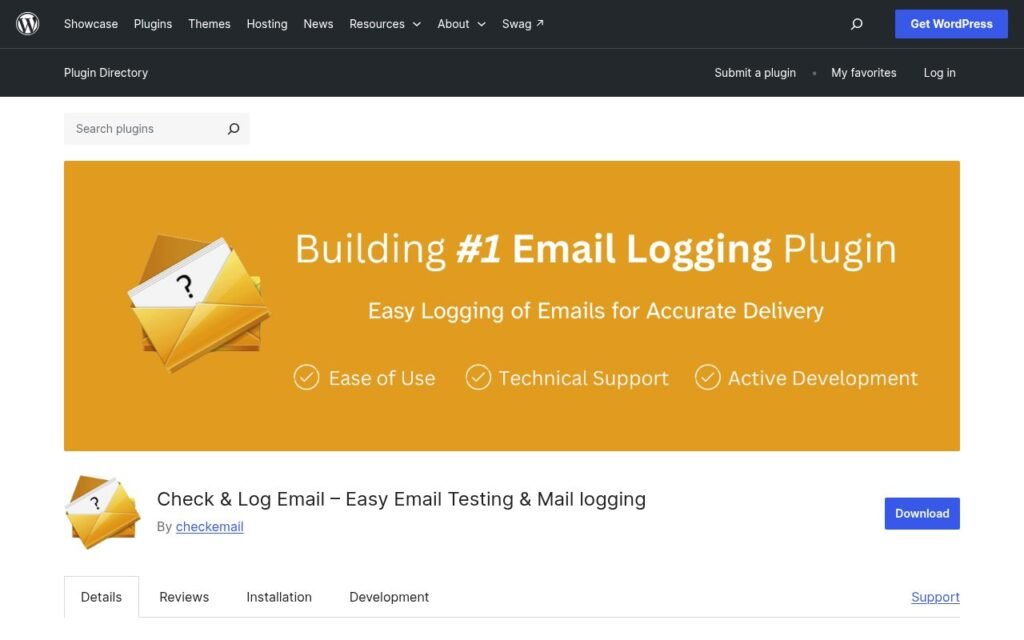
Third, test whether email leaves WordPress at all. Install the free Check & Log Email plugin (search “Check Email” in the plugin directory). It adds a Tools > Check Email page where you can send a test message and see whether it was handed off to the server. If the log shows a failure, PHP mail is not working on your host. If it shows success but the email never arrives, the message is being lost or rejected downstream.
Switch WooCommerce email to SMTP
SMTP (Simple Mail Transfer Protocol) sends email by authenticating against a real mailbox, the same way your phone’s mail app does. That authentication is what gives receiving servers confidence the message is legitimate. Without it, your store email looks like spam from a random script.
You have two good options here. The first is to use your web host’s own SMTP server with a mailbox on your store’s domain (for example, orders@yourdomain.com). This keeps everything under your control and costs nothing extra beyond your hosting plan. The second is to use a dedicated transactional mail service like Postmark, Mailgun, or SendGrid. These services are purpose-built for transactional email, offer delivery logs you can actually read, and handle bounce management. For a store sending hundreds of orders a month, that visibility is worth the modest monthly cost. For a small store, your host’s SMTP is usually fine.
Whichever route you choose, the tool that connects them to WordPress is WP Mail SMTP. The free version covers SMTP with any host or service. The Pro version adds delivery logging and email alerts, which are useful but not required to get started.
- Install and activate WP Mail SMTP from the WordPress plugin directory.
- Go to WP Mail SMTP > Settings. Under “From Email”, enter the mailbox address you want store email to come from (for example,
orders@yourdomain.com). Under “From Name”, enter your store name. - Select your mailer. If you are using your host’s SMTP, choose “Other SMTP”. If you are using Postmark or Mailgun, choose their named integration, then follow the on-screen steps to generate and paste an API key.
- For “Other SMTP”, enter the SMTP host, port, and encryption type your host provides. These are usually in your hosting control panel under “Email Accounts” or in a support document. Use port 587 with TLS if your host offers it; it is the most widely supported combination.
- Enter the mailbox username (usually the full email address) and password, then save.
- Use the Email Test tab in WP Mail SMTP to send a test to an address you can check. A success message means WordPress handed the email to the SMTP server. Check the inbox to confirm arrival.
A real-world setup we use
On a UK WooCommerce store we look after, all store email goes out through a dedicated orders@ mailbox on the store’s own domain, hosted with the web host, and sent by WP Mail SMTP over the host’s SMTP server. That means the sender domain, the mailbox, and the SMTP server all share the same domain, which satisfies SPF and DKIM alignment without needing a third-party service. The mailbox password lives only in the plugin settings and our password manager, never in a shared document or a Slack thread.

That last point matters more than it looks. SMTP credentials sitting in a shared Google Doc or an email thread are a liability. Treat them like a database password.
What else can cause delivery problems
SMTP solves the sending side. But if emails still land in spam after you switch, the domain’s DNS records need attention. SPF, DKIM, and DMARC are authentication records that tell receiving servers your domain is authorised to send mail. Your host’s support team can usually add these for you, or you can find the required values in your email hosting control panel. If you need a broader look at your site’s technical health, our SEO and technical audits cover DNS and deliverability alongside search performance.
Plugins can also interfere. Some caching plugins, security plugins, or WooCommerce extensions hook into the mail process and cause silent failures. If you switched to SMTP and the test email works but order emails still do not, temporarily disable non-essential plugins one at a time and re-test after each one.
Quick checklist before you call it done
- WooCommerce email types are enabled and recipient addresses are correct under WooCommerce > Settings > Emails.
- WP Mail SMTP is configured with a real mailbox and SMTP credentials, not set to PHP mail.
- The Email Test tab returned a success message and the test email arrived in the inbox (not spam).
- SPF and DKIM records exist for the sending domain (check with MXToolbox if you are unsure).
- SMTP credentials are stored securely, not in a shared document.
When to get help
Most store owners can get through the SMTP setup in under an hour, especially if the host’s control panel is straightforward. Where it gets complicated is DNS: if you are on a host that separates DNS from email hosting, or if the domain registrar is different from the web host, the SPF and DKIM setup requires a few more steps and some patience. If that is where you are stuck, or if you would rather not risk a misconfigured mail setup on a live store, it is worth getting a developer to handle it. We cover email configuration as part of our care and maintenance plans, so it does not fall through the cracks the next time something changes on the hosting side.
If you want a second set of eyes on what is happening with your store’s email, book a free 30-minute call and we can take a look.