Your host flagged an old PHP version, or you just saw WordPress PHP 8.4 compatibility mentioned somewhere and wondered if it applies to you. The short answer: yes, you should upgrade, and yes, you can do it safely with about 20 minutes of preparation.
PHP 8.4 brings real speed gains, tighter type handling, and security fixes that older branches no longer receive. WordPress 6.7 and later fully supports it. The risk is not in PHP itself; it is in a theme or plugin that was written for PHP 7.x and was never updated. That is what this guide helps you catch before you flip the switch.
Check compatibility before you touch anything
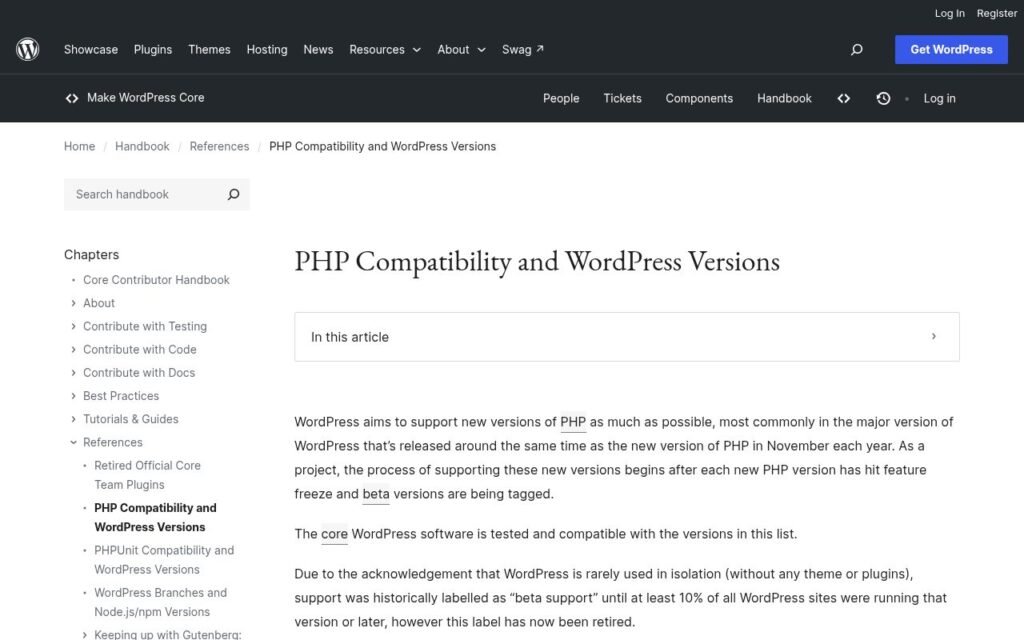
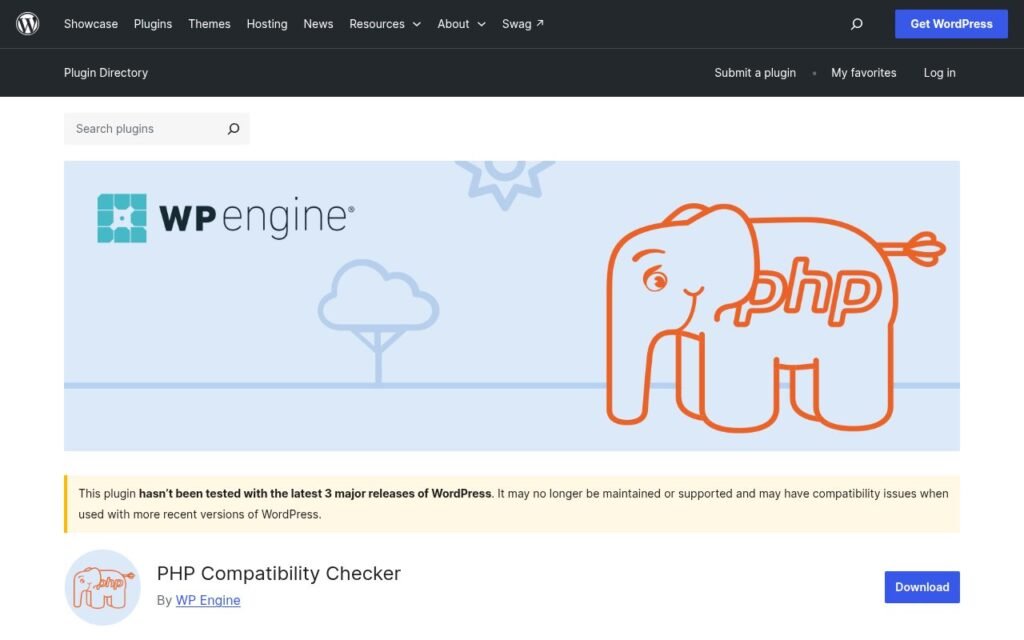
The free PHP Compatibility Checker plugin (by WP Engine) scans your installed plugins and themes against a target PHP version and lists errors, warnings, and the files they appear in. Install it, run a scan against PHP 8.4, and read the results.
Errors are blockers: they will cause fatal errors or white screens after a switch. Warnings are worth reading but rarely fatal. For anything flagged, check whether the plugin has had a release in the last 12 months. If it has, update it first and re-scan. If the last release was in 2019 and the error report is long, that plugin needs replacing before you proceed.
Also check the WordPress PHP compatibility reference to confirm your WordPress version officially supports 8.4. If you are running WordPress 6.6 or earlier, update WordPress first.
Save your current PHP settings before you switch
This step is easy to skip and annoying to regret. On Hostinger specifically, switching the PHP version resets custom PHP options (memory limit, max upload size, max execution time) back to that version’s defaults. Extensions are preserved, but the numeric settings are not. So before you change anything, write down what you have.
In Hostinger’s hPanel, go to Hosting, select your site, then find PHP Configuration under the Advanced section. Note every value that differs from the defaults, particularly memory_limit, upload_max_filesize, post_max_size, and max_execution_time. After the switch, go back to the same screen and re-apply the values you noted. For other hosts, the path will differ; look for a “PHP Options” or “Select PHP Version” panel in your hosting control panel and do the same thing.
How to switch to PHP 8.4 (the actual steps)
Do this on a staging site first if you have one. If you do not, the rollback process below is fast enough that switching directly on a live site is acceptable for most WordPress sites, provided you completed the compatibility check above.
- Take a full backup. A file and database backup together. If your host does not provide on-demand backups, use a plugin like UpdraftPlus and confirm the backup file exists before continuing.
- Open your hosting control panel and find the PHP version selector. On Hostinger this is under Hosting > your site > PHP Configuration. Select PHP 8.4 and save.
- Wait 30 seconds, then load your site’s homepage with a cache-busting query string appended (for example,
https://yoursite.com/?nocache=1). If you see a white screen or a fatal error message, your PHP error log and the visible message will usually name the offending plugin. - Re-apply your saved PHP settings in the same PHP configuration panel.
- Clear your server-side cache and any CDN or page-caching plugin cache.
- Test the front end, log in to wp-admin, submit a contact form, and if you run WooCommerce, walk through the checkout flow.
If something breaks, switch back to your previous PHP version in the same panel. The site will recover immediately. Then identify the offending plugin from the error log and either update or replace it before trying again.
How to verify PHP 8.4 is actually serving your site
Caching layers can make it look like nothing changed. The reliable check is to inspect the HTTP response headers directly.
In Chrome or Firefox, open DevTools (F12), go to the Network tab, reload your site with a cache-busting query string, click the first document request, and look at the Response Headers. Find the X-Powered-By header. If it reads something like PHP/8.4.x, you are live on 8.4. Some hosts suppress this header for security reasons; in that case, a small phpinfo() file uploaded to the server and viewed once will confirm it, though delete that file immediately after checking.
You can also install the Health Check and Troubleshooting plugin and look at the Site Health screen in wp-admin under Tools > Site Health > Info > Server. It reports the PHP version WordPress is actually running under.
When to handle this yourself and when to get help
You can do this yourself if your compatibility scan comes back clean (or with minor warnings only), you have a reliable backup, and your host’s control panel gives you a PHP selector. The process is reversible and the whole thing takes under half an hour.
It is worth getting help when:
- The compatibility scan flags errors in plugins central to your business (payment gateways, booking systems, membership plugins).
- You are on a managed host that does not expose a PHP version selector directly.
- Your site has custom PHP code (a custom theme, bespoke plugins, or a functions.php with significant logic) that the scanner flags.
- You do not have a rollback path and the site is revenue-generating.
In October 2026 we moved every client site we host on Hostinger to PHP 8.4. New sites we build start on 8.4 or newer; we no longer provision anything on 8.2 or below. The compatibility scan and the saved-settings step are exactly what made those migrations quiet. No surprises, no emergency rollbacks.
If you would rather have someone handle the check and the switch for you, that is part of what we cover in our care and maintenance plans. Or if your site needs a broader look at technical health alongside the PHP question, a technical audit will surface those issues at the same time. Either way, feel free to book a free 30-minute call and we can tell you in a few minutes whether your site is ready to move.